

Guide
How to restore old photos
The complete, no-nonsense guide to bringing damaged, faded, and blurry photos back to life — from your phone, without Photoshop.
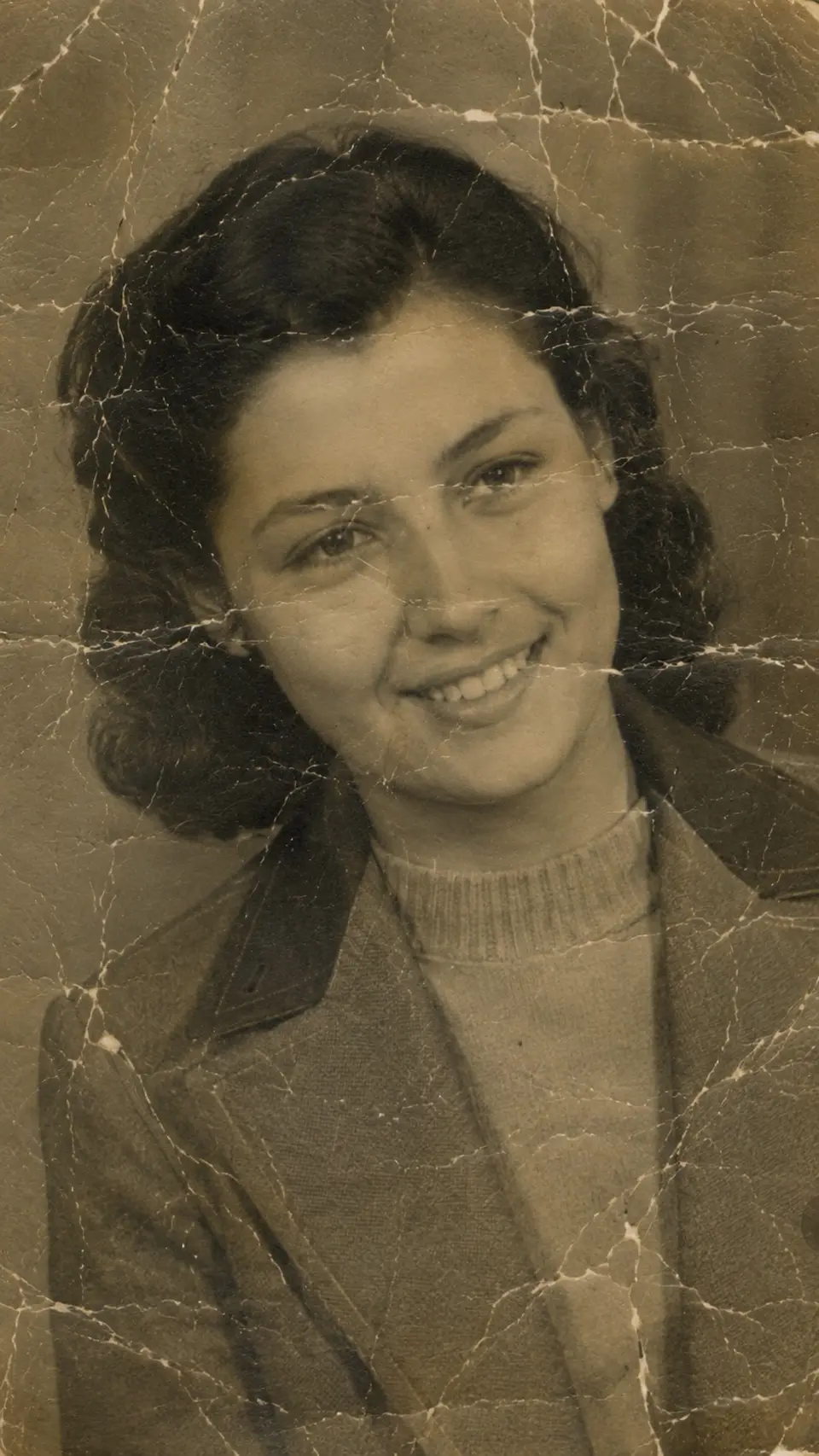

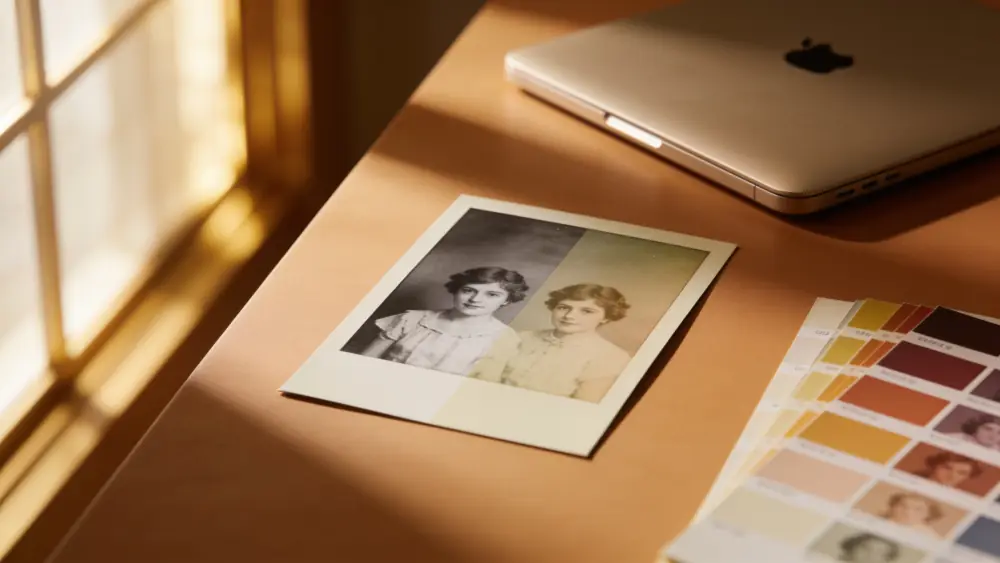
Drag to compare — a real Reviva restore
Restoring old photos used to mean a scanner, a copy of Photoshop, and hours of manual retouching — or paying a studio $40–150 a print. It doesn't anymore. Here's the fast way, plus the principles that make any method work better.
Start with the best possible capture
If you're photographing a print, use soft, even light (a window works), avoid glare, and fill the frame. A good capture gives any restoration tool far more to work with.
Repair damage before you colorize
Always fix cracks, tears, and fading first, then colorize. Colorizing damage just gives you colored damage. Reviva does these in the right order automatically.
Don't over-sharpen
Aggressive sharpening creates halos and a fake look. Good restoration reconstructs real detail instead of cranking contrast — which is why AI reconstruction beats manual sharpening for faces.
Keep the original file
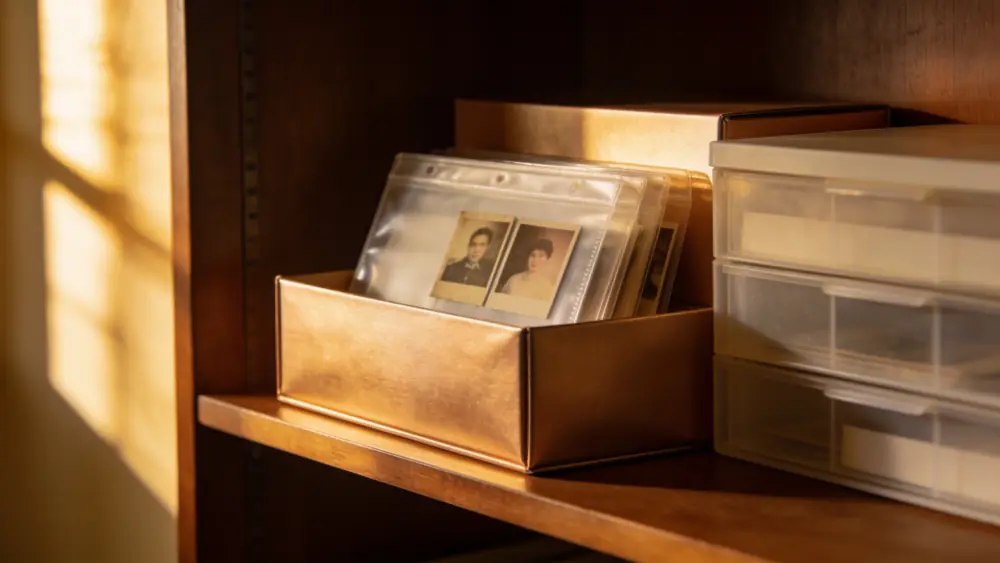
Always save the restored copy separately and keep the untouched original. Restoration should add options, never overwrite your only version.
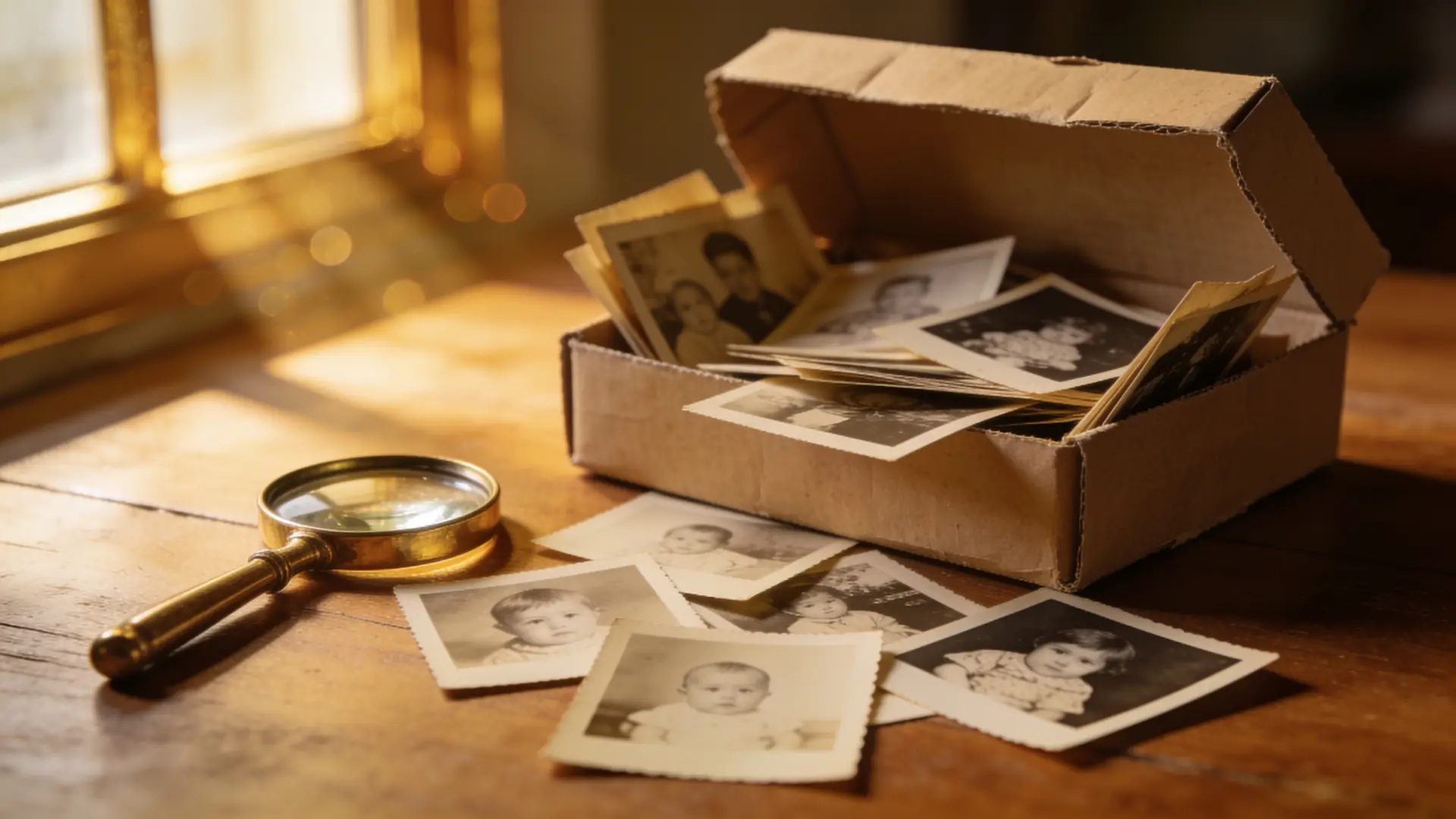
How it works
From your camera roll to restored in seconds
-
Step 01
Capture or scan the photo
Take a clear, evenly lit phone photo of the print — or use an existing scan.
-
Step 02
Restore the damage
Open Reviva, tap Restore, and let the AI rebuild cracks, tears, stains, and fading.
-
Step 03
Colorize or enhance (optional)
Add natural color to black-and-white photos, or sharpen a blurry face.
-
Step 04
Save and back up
Save the full-resolution result and keep your original file safe.
Ready to see your photo restored?
Free to try — your first restore takes seconds.
More before & after
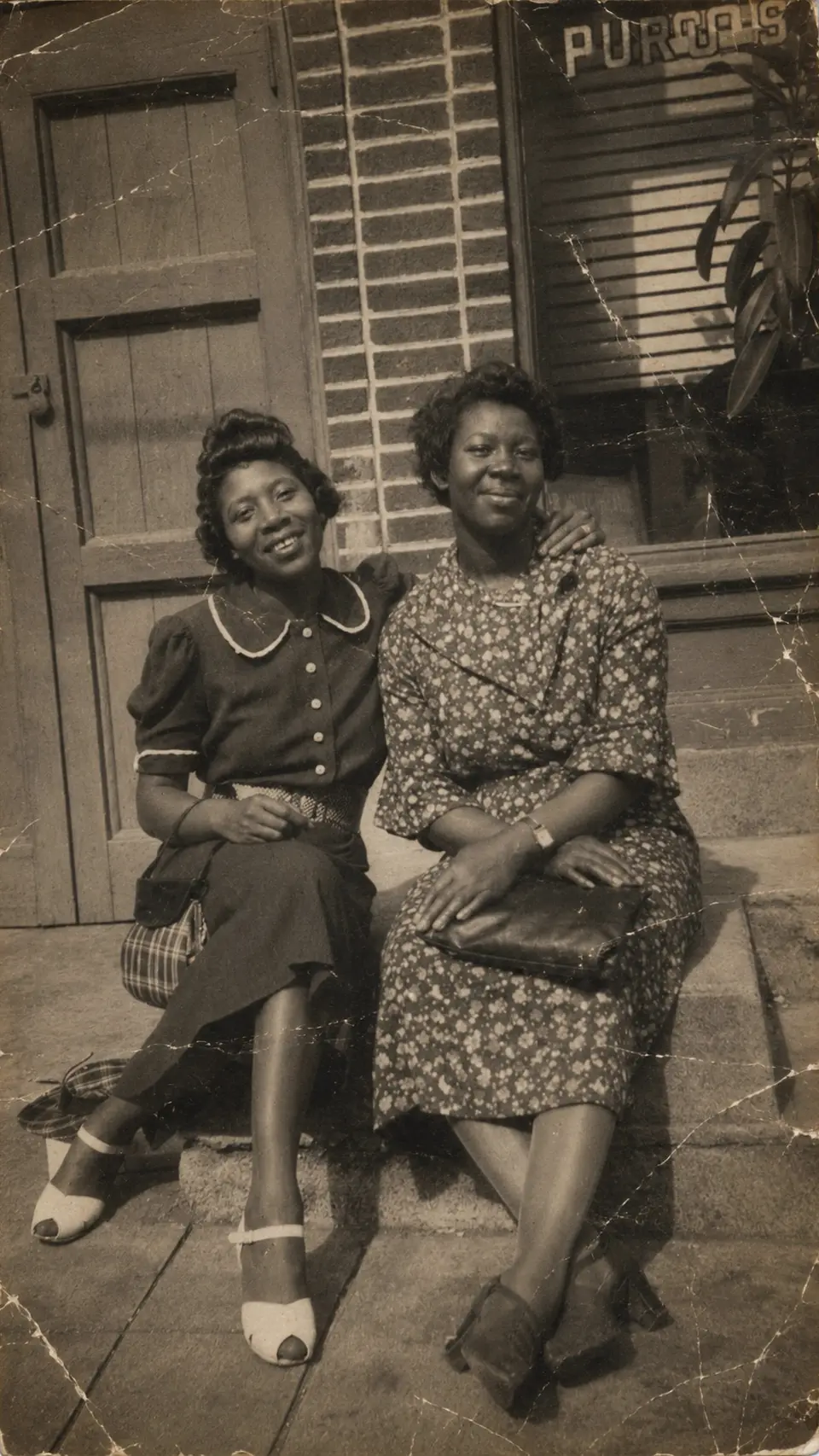
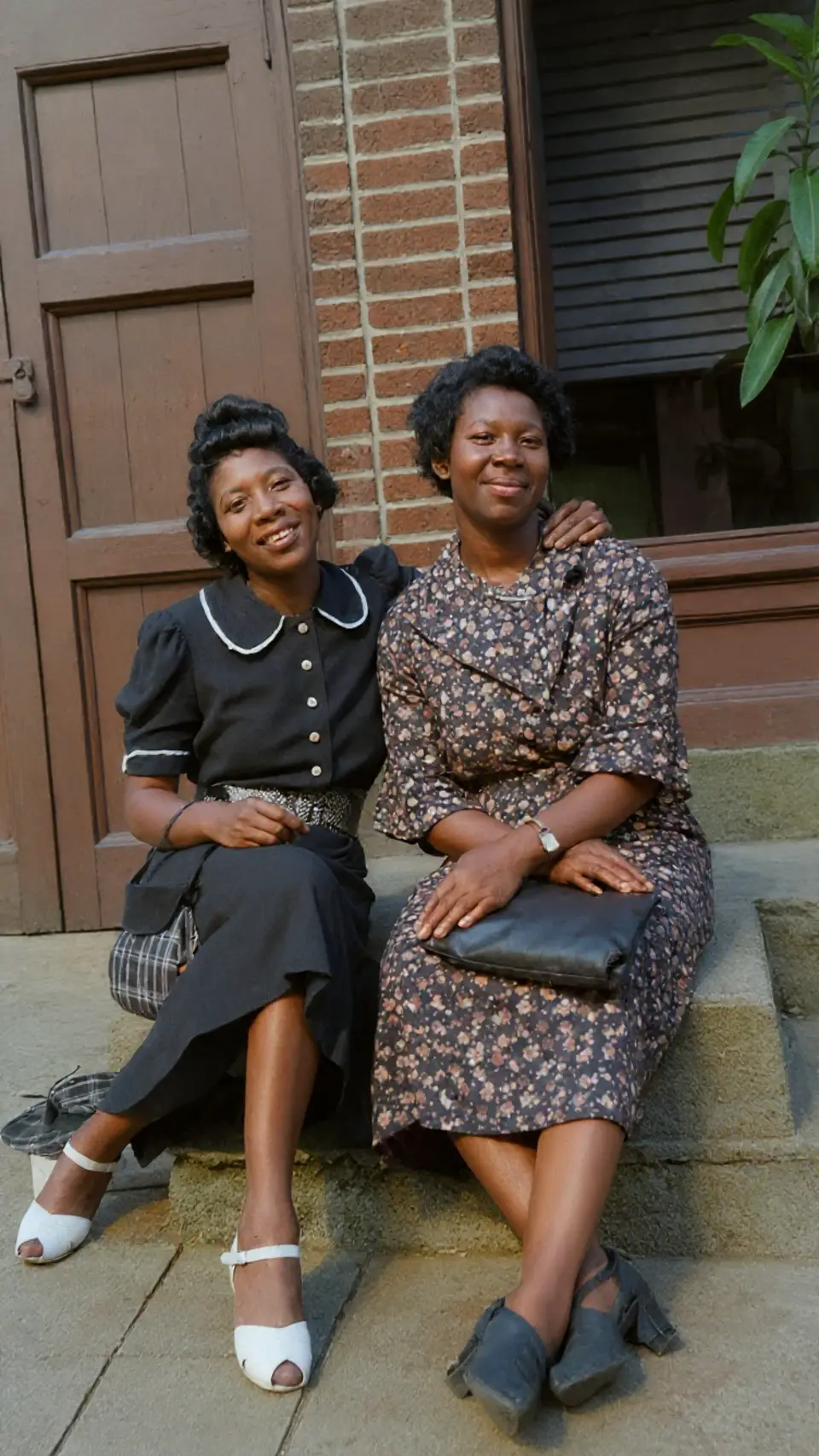
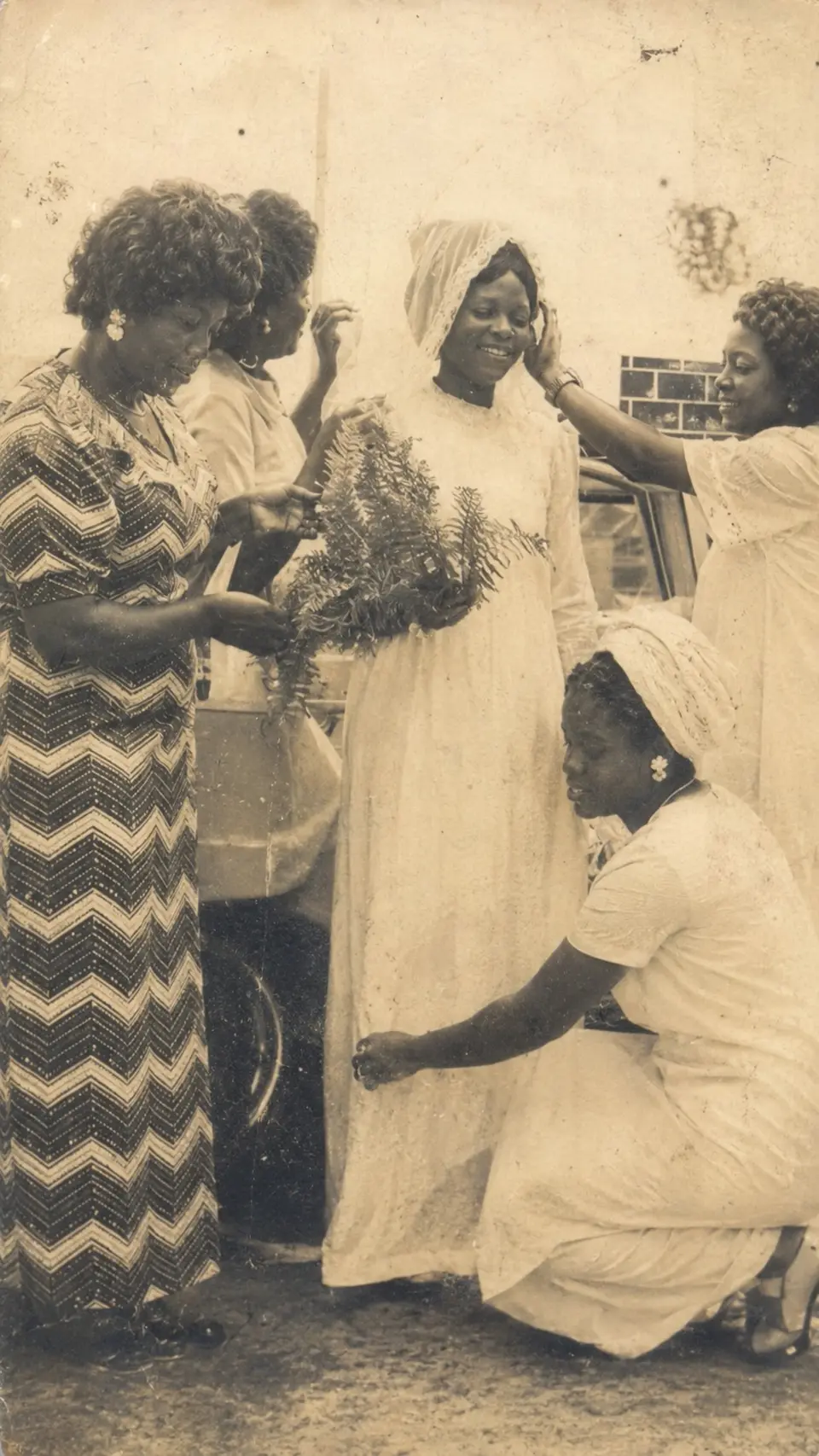
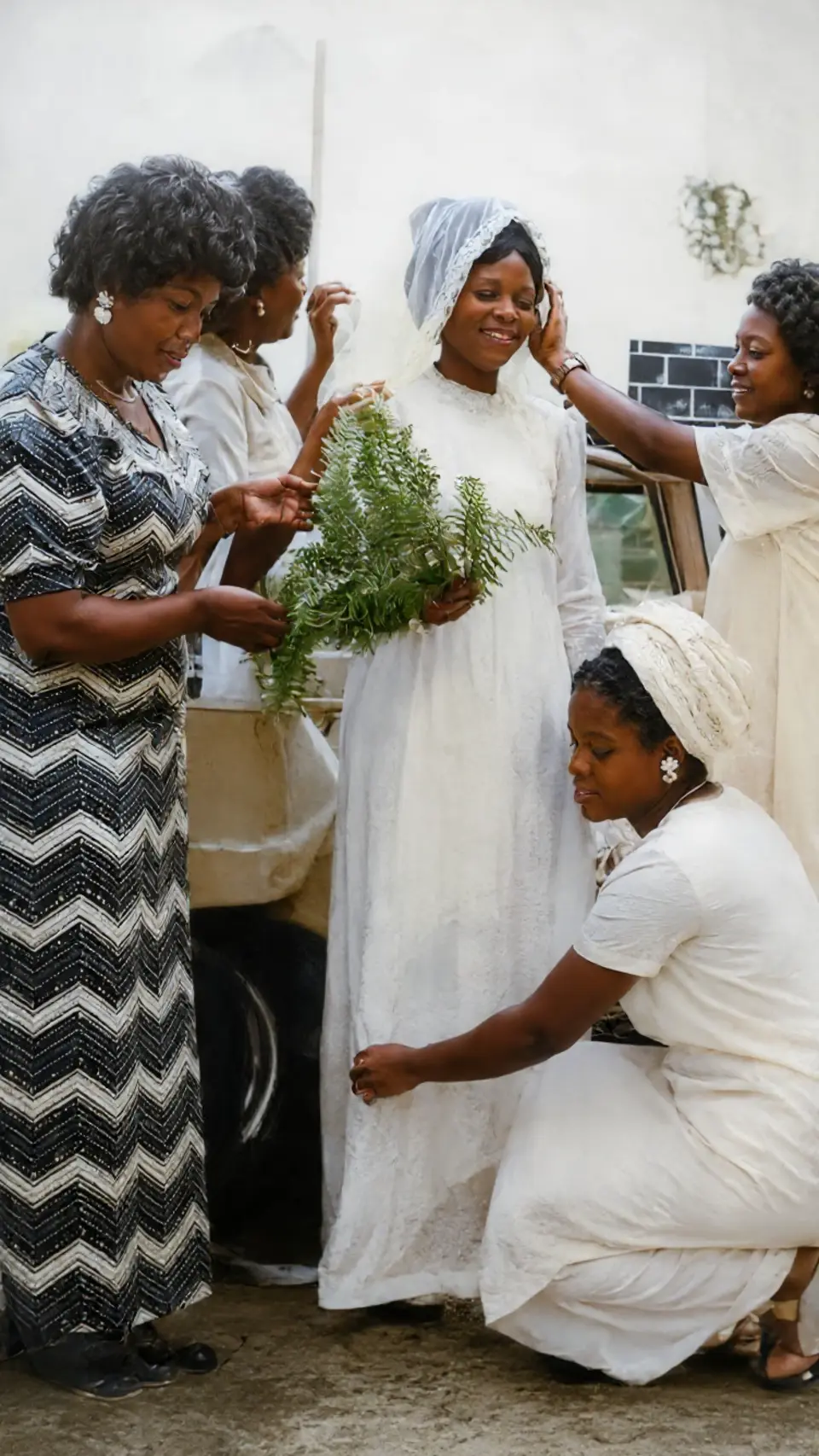
Frequently asked
Can I restore old photos without Photoshop?
Yes. An AI app like Reviva restores damage, colorizes, and sharpens automatically — no desktop software or manual retouching required.
Do I need to scan my photos?
No. A clear, well-lit phone photo of the print is enough for a great restore.
What's the best app to restore old photos?
Reviva is purpose-built for restoration — repair, colorize, and enhance in one flow, tuned for the hardest, most-damaged family photos.
Keep exploring
More ways to bring your photos back
Try it on your hardest photo
Pick the most damaged print in the box and see what comes back.