

Guide
How to colorize black-and-white photos
What makes colorization look believable, the mistakes that make it look fake, and the fastest way to add natural color.
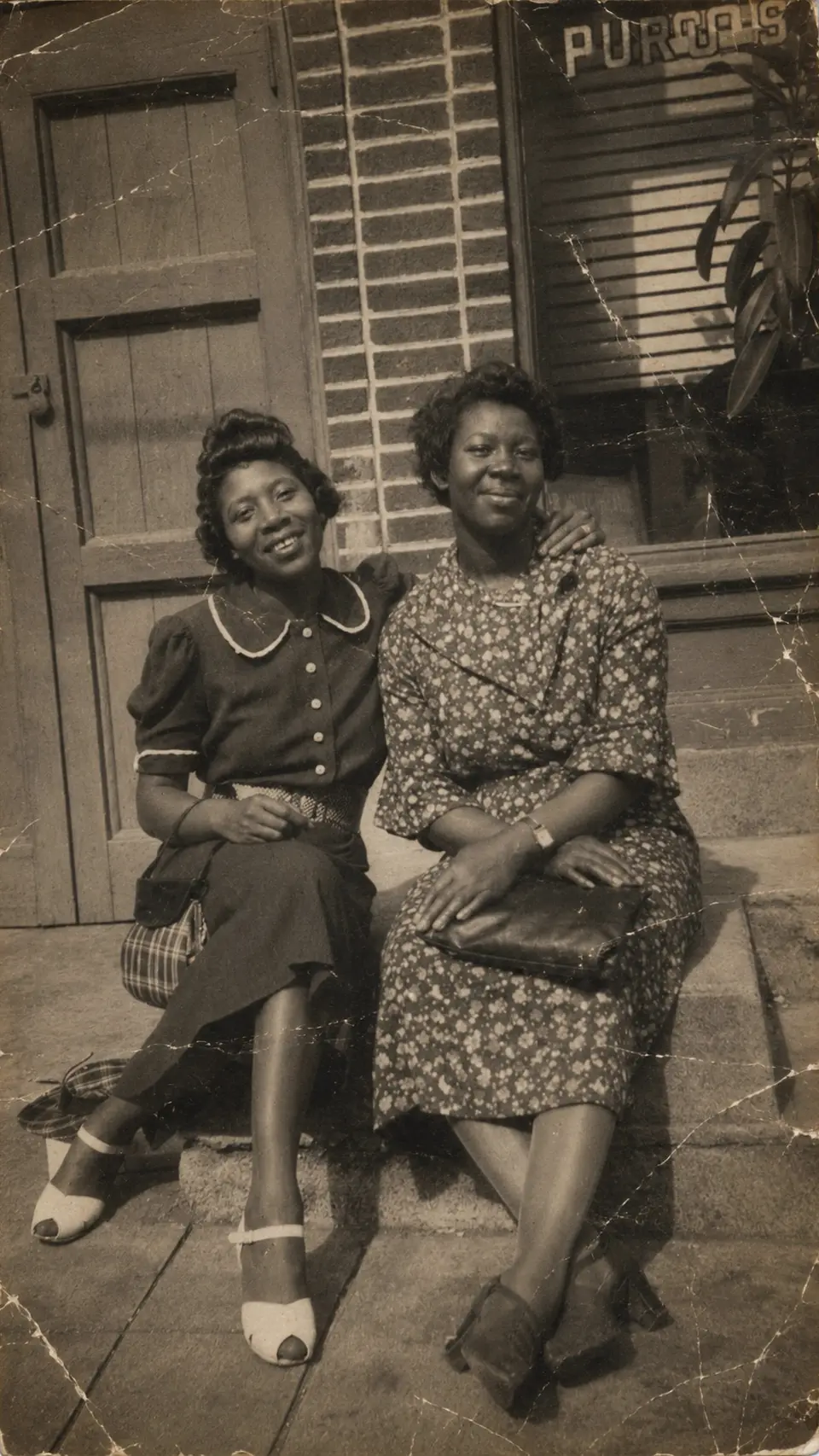
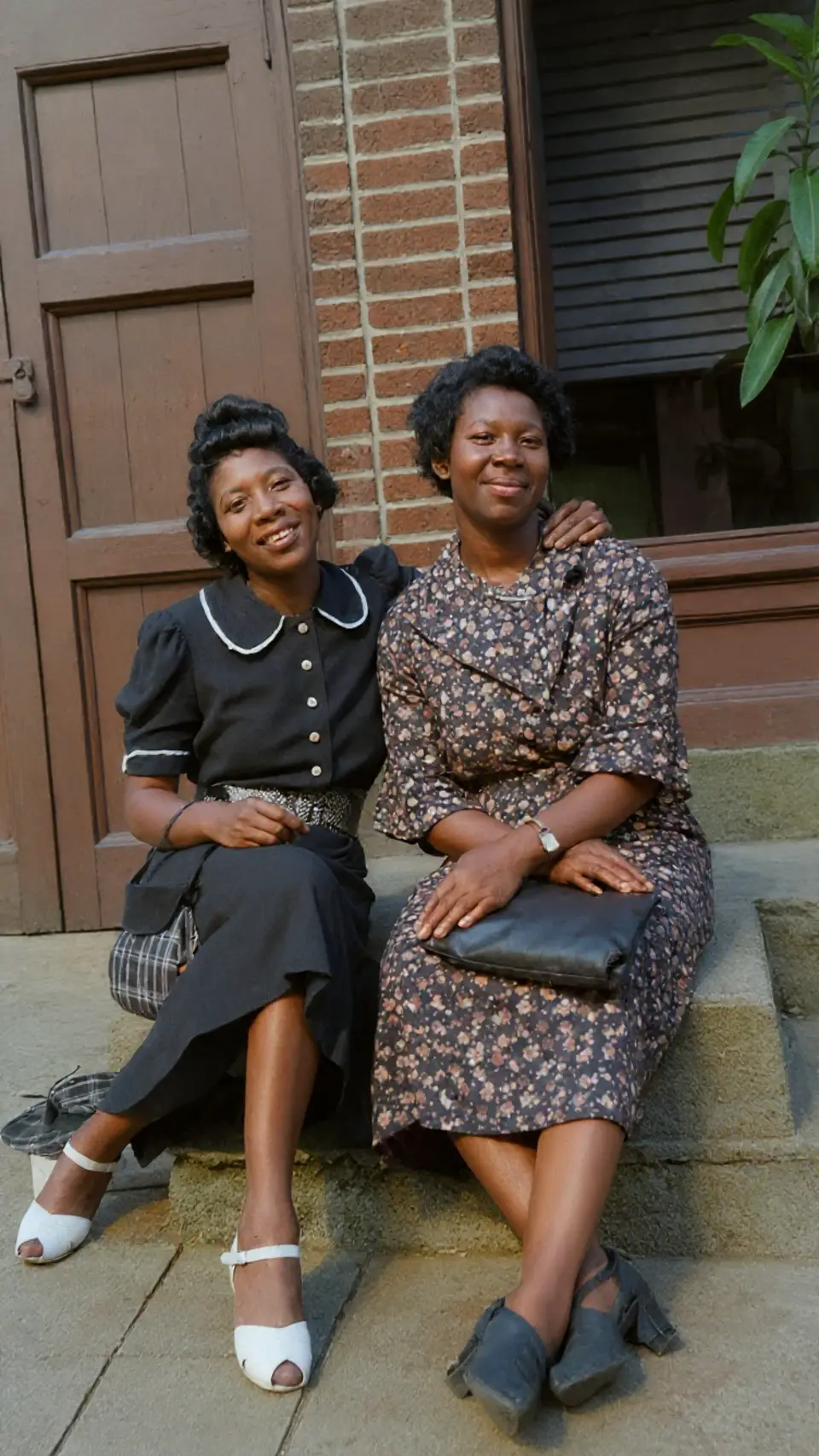
Drag to compare — a real Reviva restore
Good colorization is invisible — it looks like the photo was always in color. Here's how to get there instead of the over-saturated, cartoonish look.
Right color beats bright color
The skill isn't adding color, it's choosing period-accurate, natural tones. Believable skin, muted period fabrics, and realistic skies are what sell it. AI trained on real photos infers these automatically.
Restore first, then colorize
Cracks and fading distort color placement. Repair the print first so color lands on clean detail, not on damage.
Keep the monochrome version
Colorization is a new interpretation, not a replacement. Save both — many people love the restored black-and-white as much as the color.
How it works
From your camera roll to restored in seconds
-
Step 01
Open Reviva and tap Colorize
Colorize mode adds natural color automatically.
-
Step 02
Choose a black-and-white photo
Any grayscale print or scan works.
-
Step 03
Save both versions
Keep the color result and the restored monochrome original.
Ready to see your photo restored?
Free to try — your first restore takes seconds.
Frequently asked
How do I colorize a photo without it looking fake?
Use natural, period-accurate tones and restore damage first. Reviva's AI infers believable color automatically, avoiding the over-saturated look.
Is AI colorization accurate?
It's a plausible interpretation based on real-world color, not a record of the true colors — but on faces and common scenes it's remarkably convincing.
Keep exploring
More ways to bring your photos back
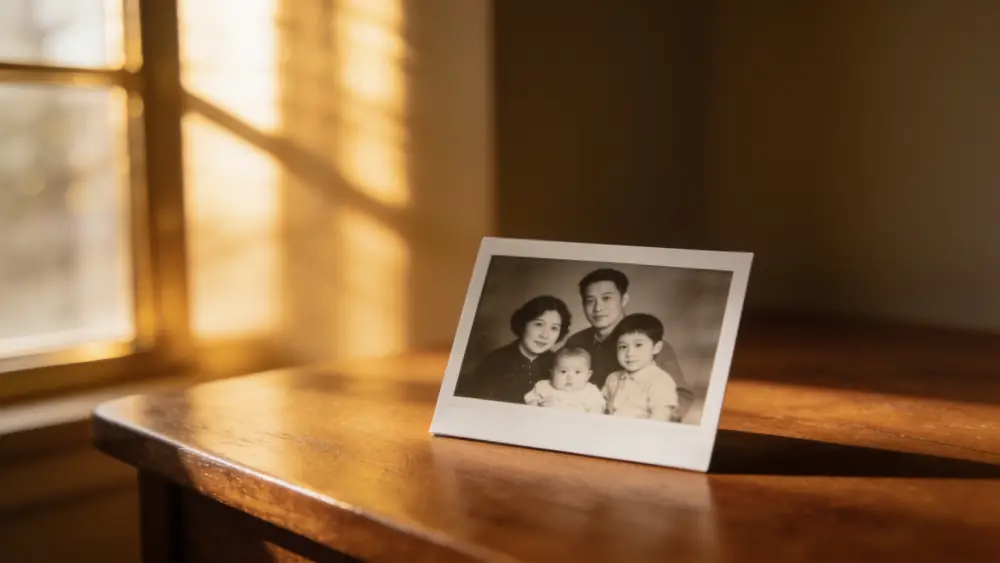
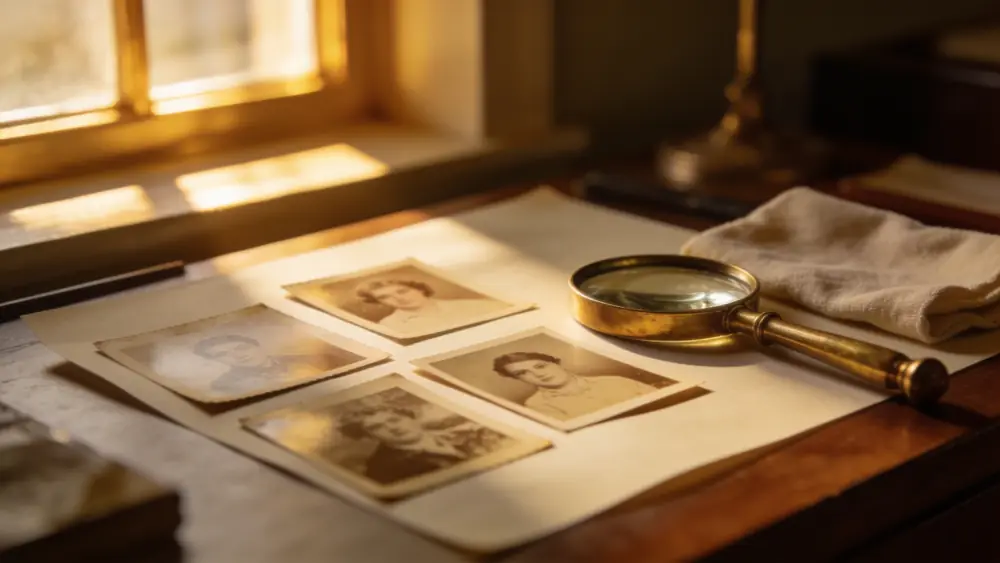
Colorize a black-and-white photo
Watch a grayscale memory turn to natural color.